
Context: G-Dental uses CliniViewXV (by Apteryx) as their dental imaging system. When you need to view a patient's X-rays — for pre-treatment estimates, billing appeals, or clinical history review — this SOP walks you through it step by step.
PHI: X-rays are protected health information (HIPAA). Do not share screenshots outside BrandaCare + G-Dental. Only use for authorized clinical/billing purposes.
1
Open CliniViewXV from the desktop
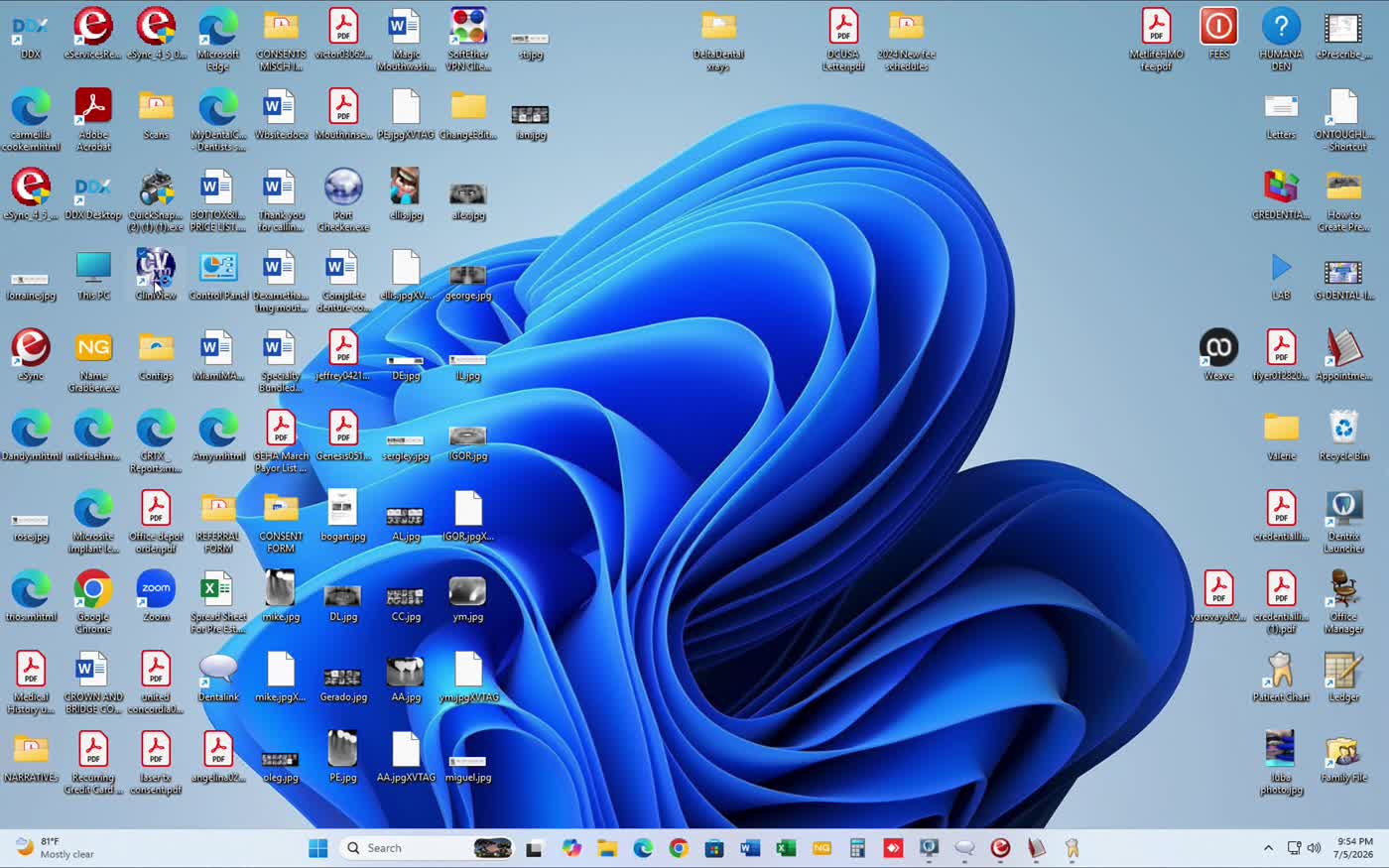
Look for the CV / CliniView icon on the desktop (left column, third block). Double-click to open.
2
Wait for CliniViewXV to load
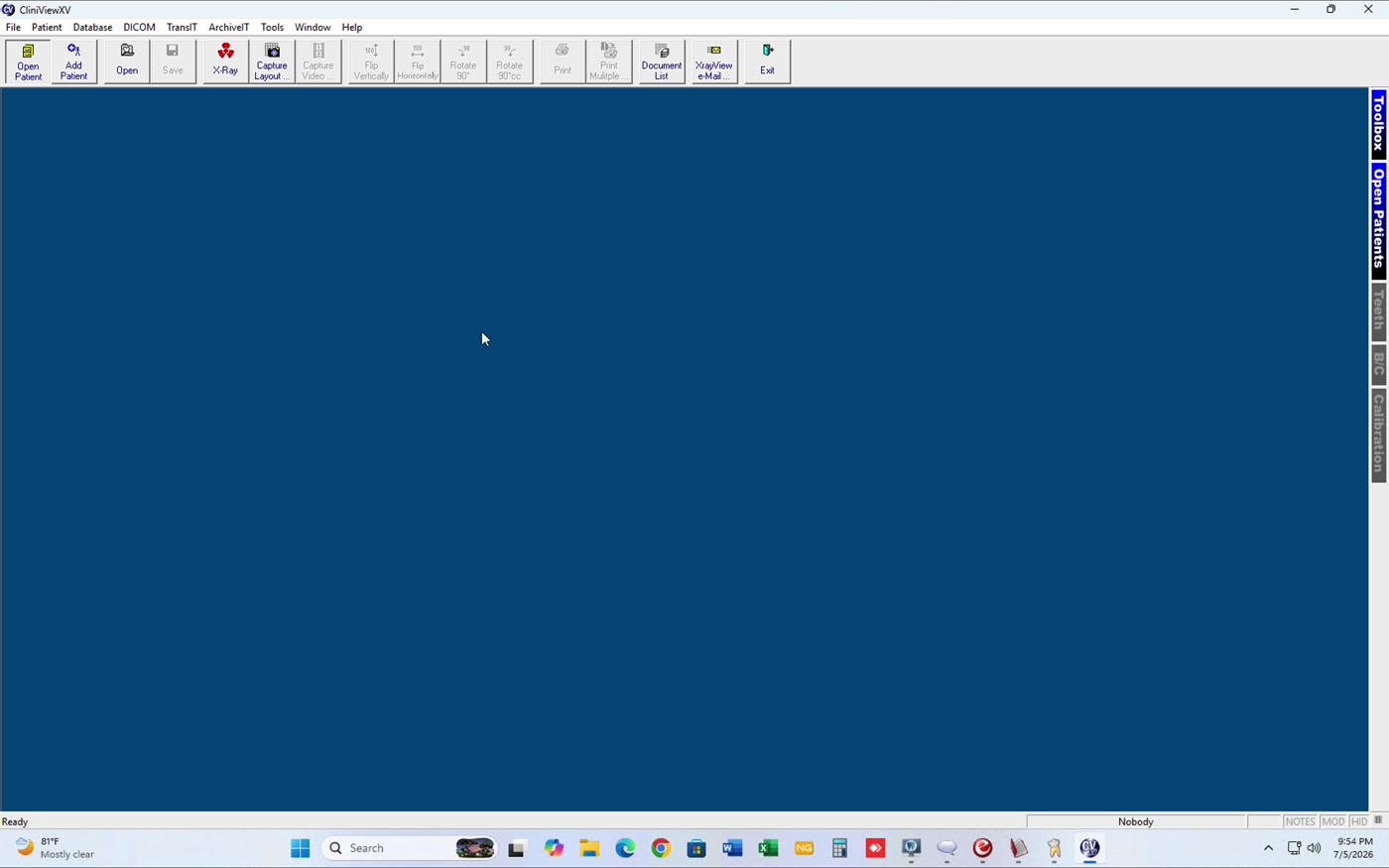
The main screen is blue with the toolbar at the top. Bottom-right corner shows "Nobody" (no patient selected yet).
3
Click "Open Patient" (top-left)
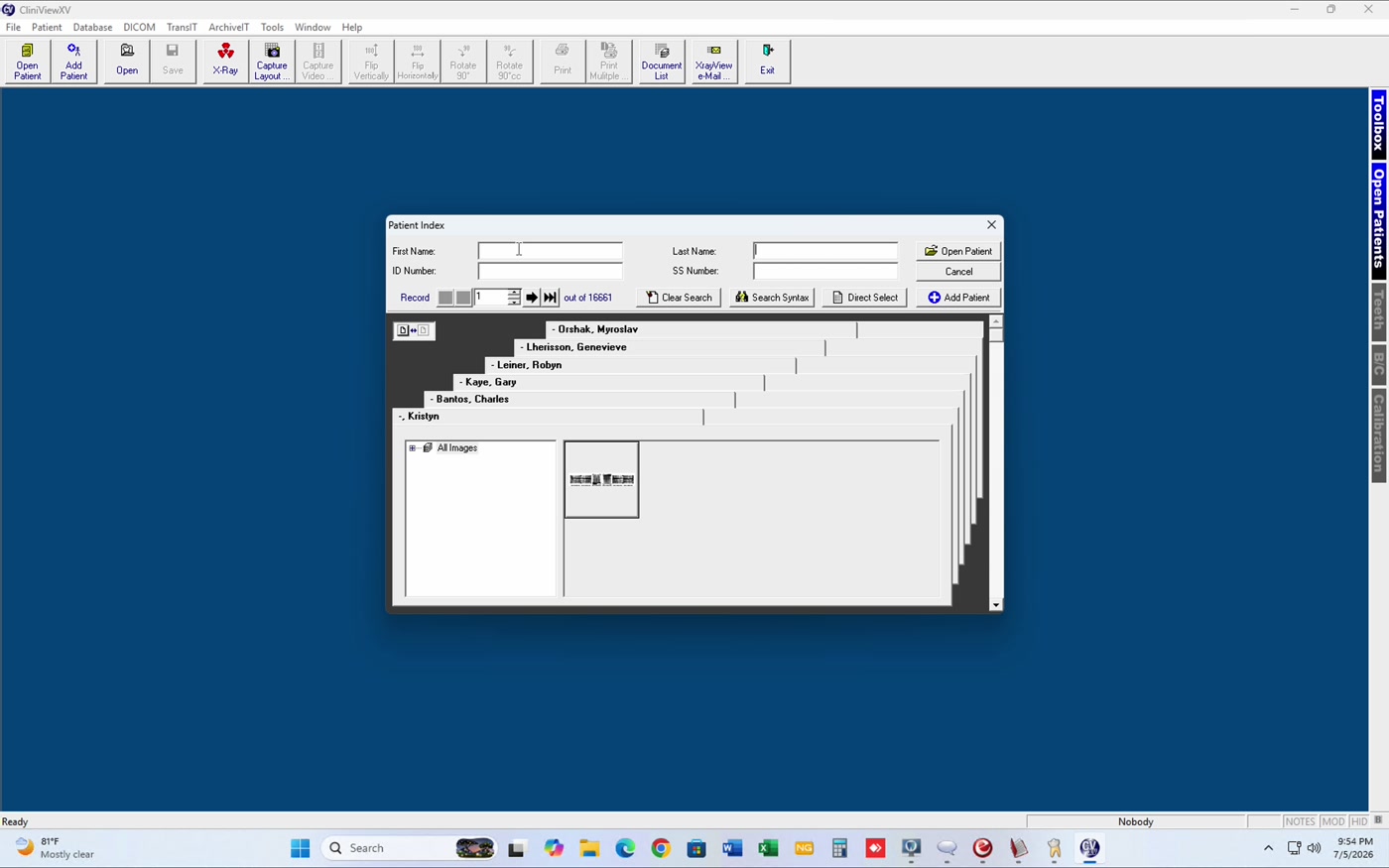
The Patient Index dialog opens with fields: First Name, Last Name, ID Number, SS Number.
4
Type the patient's name (First Name + Last Name)
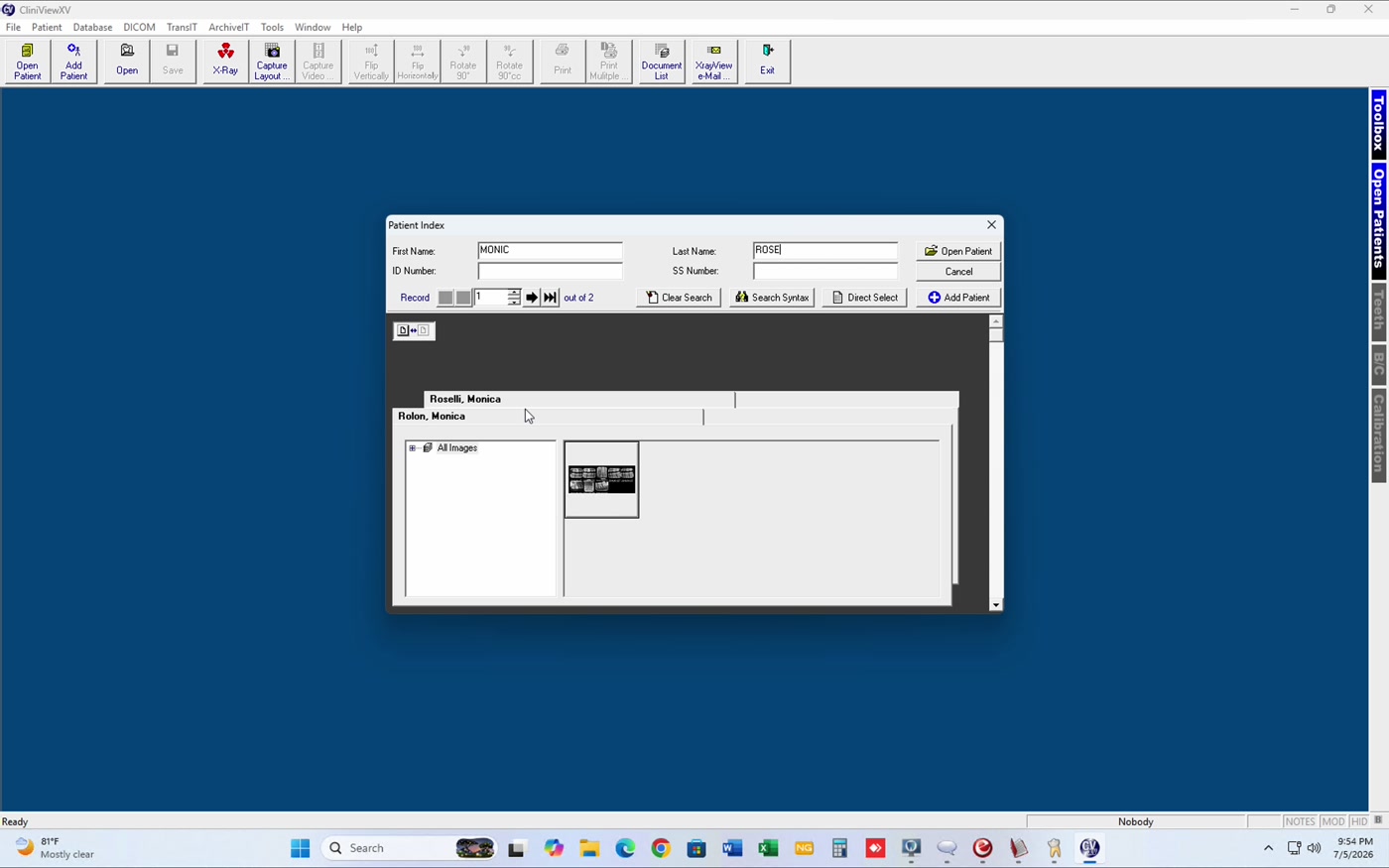
Example:
Tip: the first 3-5 letters of each name are enough. No need to type it all.
MONIC in First Name + ROSE in Last Name. The list below auto-filters and shows matches (Roselli, Monica, Rolon, Monica...). "out of 2" at the top tells you how many matches there are.
Tip: the first 3-5 letters of each name are enough. No need to type it all.
5
Select the right patient → click "Open Patient"
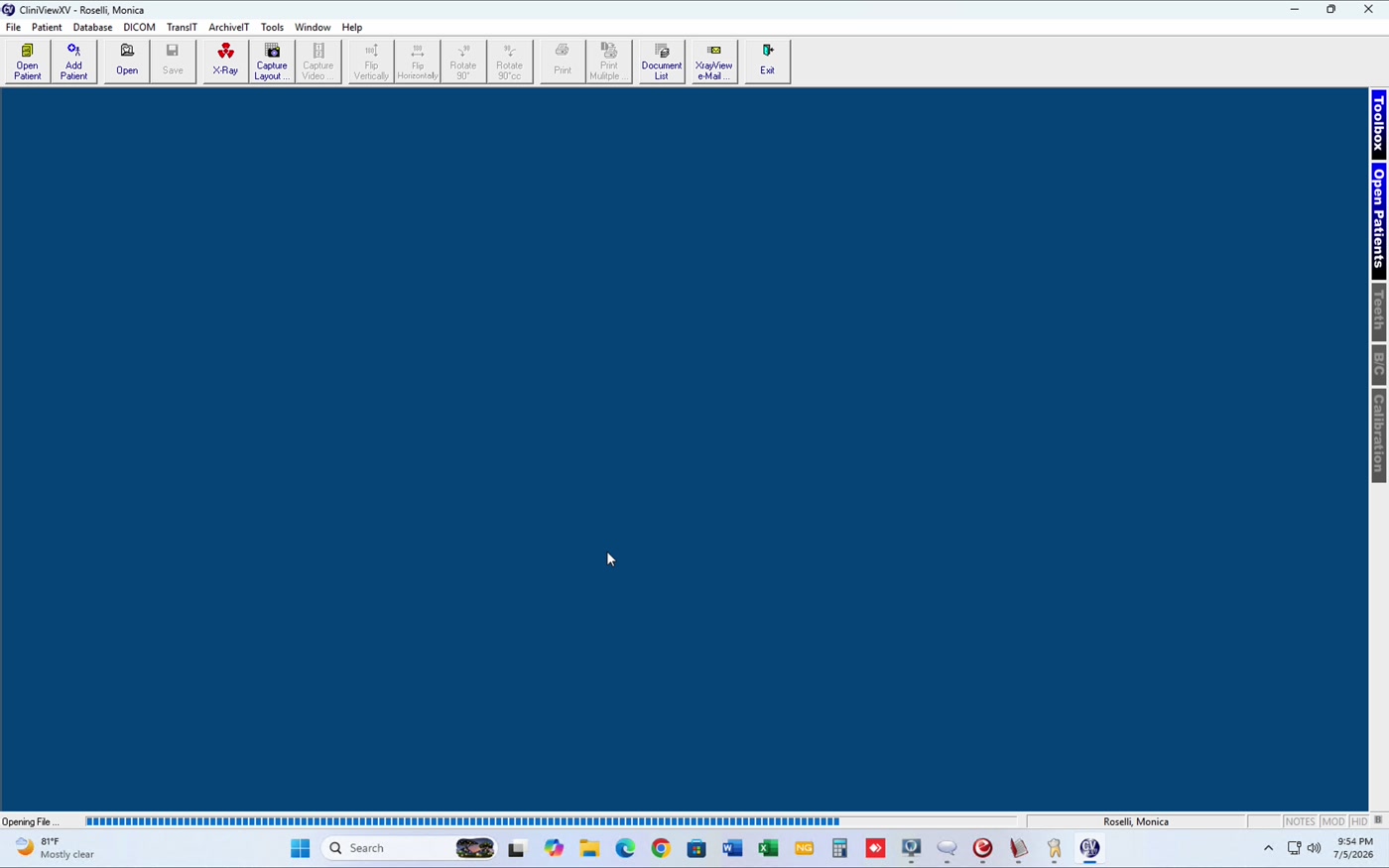
CliniView shows "Opening File..." with a progress bar at the bottom. Can take 5-30 seconds depending on the patient's file size. Do not close the window or click elsewhere while it loads.
6
View the first X-ray series
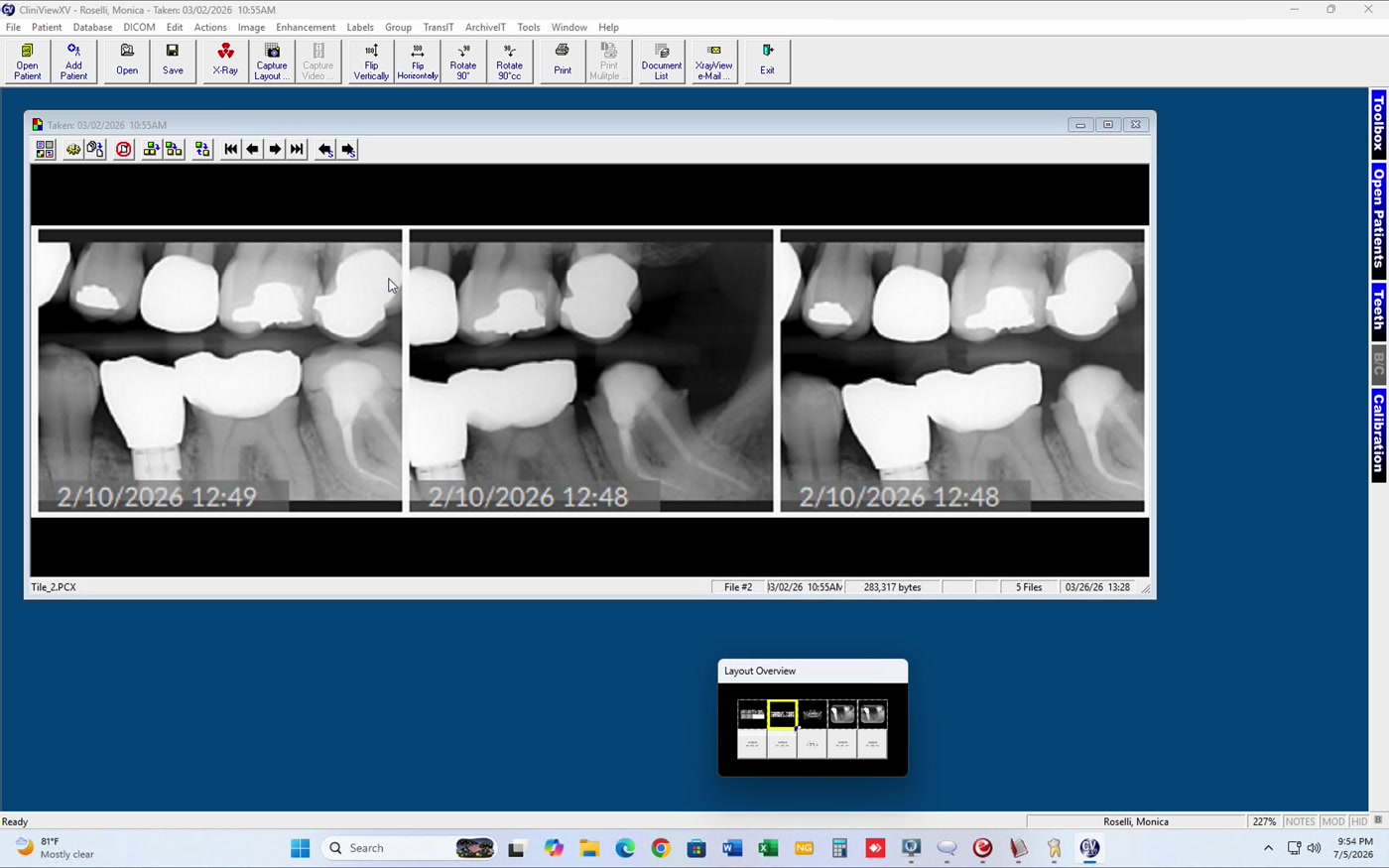
The X-rays display with the date and time below each one (e.g.
2/10/2026 12:49). At the bottom, the Layout Overview window appears with thumbnails of all available series — the yellow highlighted box indicates which one you're viewing.
7
Navigate between series using the arrows or Layout Overview
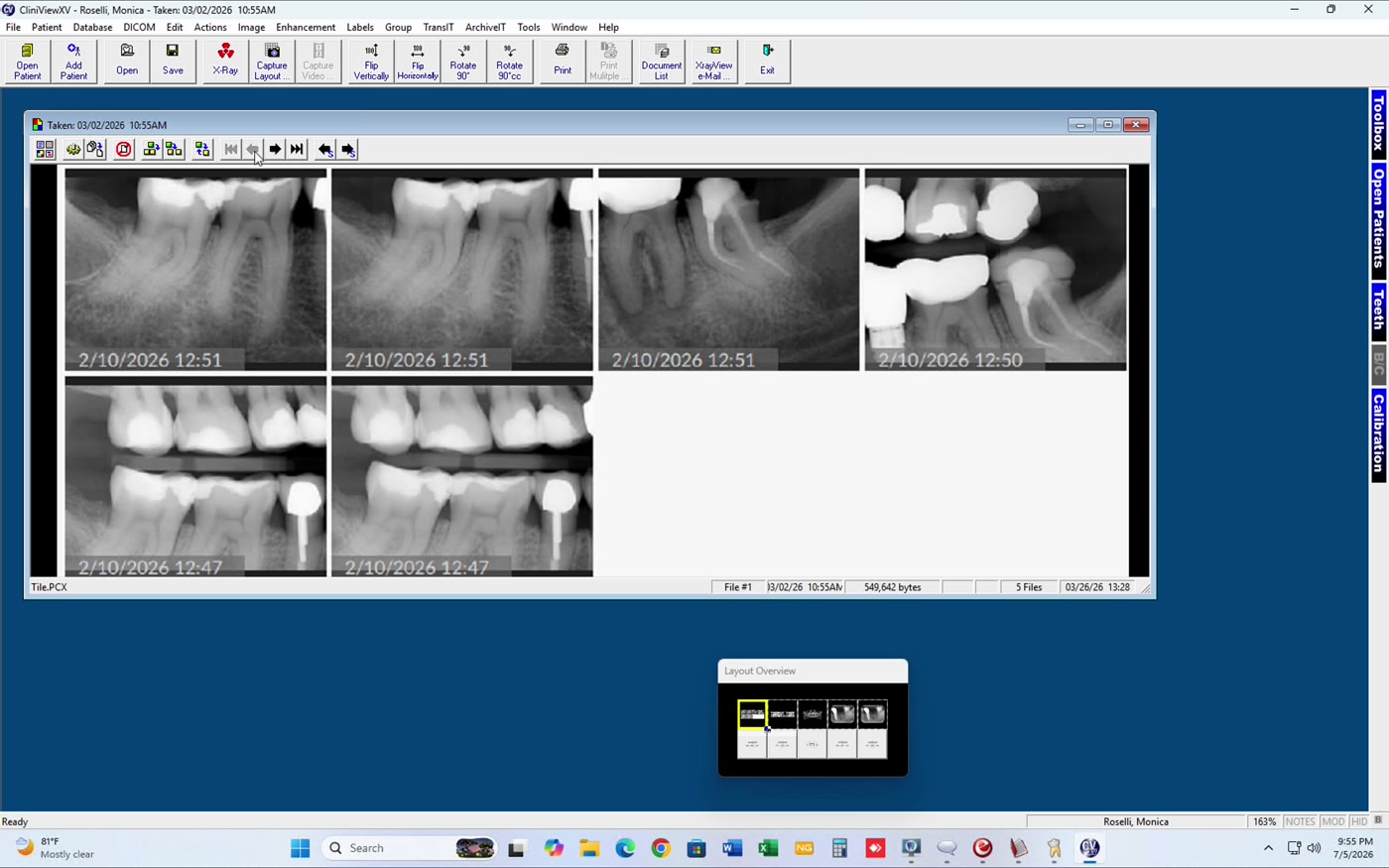
To view another series of the same patient:
- Option A — click a thumbnail in the Layout Overview (bottom).
- Option B — use the ▶ / ◀ arrows in the panel's top toolbar.
- The bottom bar shows the set date (
Taken: 03/02/2026 10:55AM), file count (5 Files), and current zoom (e.g.163%).
Useful tips
| Action | How |
|---|---|
| Enlarge a single X-ray | Double-click on the individual image |
| Zoom in / out | Right-side panel buttons (or mouse scroll) |
| Rotate 90° / flip | Toolbar buttons Rotate 90° / Flip Vertically / Flip Horizontally |
| Print/export an X-ray | Print button in the toolbar → choose Microsoft Print to PDF to save as a file |
| Close the patient | Exit button top-right (or open another patient with Open Patient) |
Common issues
| Symptom | Fix |
|---|---|
| "Opening File..." hangs more than 1 minute | Close CliniView (X top-right) and reopen. If persists, notify IT — the patient's file may be corrupted. |
| Patient doesn't appear when searching | Try fewer letters (e.g. just the last name). Check spelling. If the name has accents, type it without accents. |
| CliniView opened but no desktop icon | Search in Windows Start menu (bottom-left Start button) → type "CliniView". |
| Window looks cut off / bad | Maximize the window (square button top-right, next to the X). |
Remember: CliniViewXV is only for viewing existing X-rays. New radiographs are taken by G-Dental's X-Ray Tech — we don't do that from here.